
Your purchase of Enterprise Architect entitles you to free updates of Enterprise Architect and supporting software for a period of 12 months, the credentials provided in your license will enable you to access the Registered User at https://sparxsystems.com/registered/ where you will find important information about latest product releases, updates and support.
With the release of Pro Cloud Service, the functionality provided by the Keystore Service has been replaced by the unlicensed edition of the Pro Cloud Server. No further development will be made to the Keystore Service.
You can download the Pro Cloud Service here: https://sparxsystems.com/products/procloudserver/downloads.html
We have summarized below how you can configure the service:
The Floating License Server, that is a part of the Pro Cloud Server, only allows https connection so the first thing you will need is a valid certificate.
Below you can find the necessary steps to configure this:
- Get a certificate
- The PCS only accepts it as a .pem file called server that contains the unencrypted private key and the certificate.
- Place this file in your Pro Cloud Server’s service folder, e.g. C:\Program Files\Sparx Systems\Pro Cloud Server\Service
- Decide which port / ports you want to use
- This can be configured using the Pro Cloud Config Client, the password you need is “pcsadm1n”.
- You can either use the pre defined ports (1804 for http and 1805 for https) or edit them / create new ones.
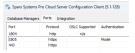
- Restart the Pro Cloud Server’s service
- Without doing this, changes to the ports and the new server.pem file won’t take effect.

- (Optional) Check if your server.pem file was accepted
- The easiest way to do this is the browser test, simply enter your server’s name or any address it is reachable under into your browser (on the server itself you can also use localhost), the right protocol and the correct port. E.g. https://localhost:1805/
- If all is well this should display the following site:
- The easiest way to do this is the browser test, simply enter your server’s name or any address it is reachable under into your browser (on the server itself you can also use localhost), the right protocol and the correct port. E.g. https://localhost:1805/

- Connect to the Floating License Server
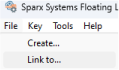
- First you will need to connect to it by clicking on link to
-
- You can connect like this:
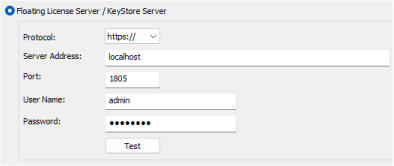
You can find a list of all default groups here
- Migrate your license keys
- You can migrate your license keys from the existing
sskeys.datlike this: Migrate shared keys - Alternatively you can also simply add them again if this doesn’t work.
- You can migrate your license keys from the existing
- Configure groups for access
- You can either edit an existing group or create one from scratch: Manage groups
- (Optional) Open the necessary ports
- If needed, open the port(s) users will connect through so they can reach the Floating License Server.
- Connect with EA to get a license
- Users should now be able to get a license: Add license key
- (Optional) Do the configuration for all users
- If needed you can also pre-configure this for all users by inserting the relevant registry entries into their systems beforehand. This makes it so EA already knows where to get a license from and does it automatically when started.
- I would recommend setting up one EA manually and then copying the resulting registry values. The ones to look for can be found below:
- If needed you can also pre-configure this for all users by inserting the relevant registry entries into their systems beforehand. This makes it so EA already knows where to get a license from and does it automatically when started.
[HKEY_CURRENT_USER\SOFTWARE\Sparx Systems\EA400\EA\OPTIONS]
“ActivationCode”=”XXXX”
“AutoCheckoutMigration”=dword:00000353
“SKT”=dword:00000001
“SSKSAddress”=”XXXX”
“SSKSPassword”=”XXXX”
“AutoCheckoutEx”=hex:1a,00,00,00
[HKEY_CURRENT_USER\SOFTWARE\Sparx Systems\EA400\EA\Settings]
“ActivationCode”=”XXXX”
[HKEY_CURRENT_USER\SOFTWARE\Sparx Systems\EA64\EA\OPTIONS]
“ActivationCode”=”XXXX”
“AutoCheckoutMigration”=dword:00000353
“SKT”=dword:00000001
“SSKSAddress”=”XXXX”
“SSKSPassword”=”XXXX”
“AutoCheckoutEx”=hex:1a,00,00,00
[HKEY_CURRENT_USER\SOFTWARE\Sparx Systems\EA64\EA\SETTINGS]
“ActivationCode”=”XXXX”